Converting HTML to PDF in C#: A Step-by-Step Guide
Generating PDF documents from HTML content is a frequent requirement in many business applications, from generating invoices to creating reports. This article presents a practical, code-focused approach to accomplish this task in C# using a .NET library that supports HTML to PDF conversion.
We will explore two common scenarios: converting an existing HTML file to a PDF, and converting a raw HTML string directly into a PDF document. Both methods are efficient and require minimal setup.
Prerequisites
To follow along, you need to add a reference to a .NET library that supports HTML to PDF conversion. For the examples in this article, we will use Spire.Doc for .NET, which provides the necessary APIs for loading HTML content and saving it as PDF.
You can install it via the NuGet Package Manager Console with the following command:
PM> Install-Package Spire.Doc
Alternatively, you can manually download the library's DLL files and add them as references in your project.
Approach 1: Converting an HTML File to PDF
This method is ideal when your HTML content is already saved as a .html or .htm file. The process involves loading the file and saving it in the PDF format.
The code below demonstrates the core steps:
Instantiate the Document class.
Load the source HTML file using the LoadFromFile method, specifying the file format.
Save the loaded content as a PDF using the SaveToFile method with the FileFormat.PDF parameter.
using Spire.Doc;
using Spire.Doc.Documents;

namespace ConvertHtmlToPdf
{
    internal class Program
    {
        static void Main(string[] args)
        {
            // Create an instance of the Document class
            Document doc = new Document();

            // Load an existing HTML file
            doc.LoadFromFile("Sample.html", FileFormat.Html, XHTMLValidationType.None);

            // Save the document as a PDF file
            doc.SaveToFile("HtmlToPDF.pdf", FileFormat.PDF);

            // Close the document and release resources
            doc.Close();
        }
    }
}

After execution, you will find a new PDF file named HtmlToPDF.pdf in your output directory, which retains the layout and styling of the original HTML.
Approach 2: Converting an HTML String to PDF
For dynamic content, such as HTML generated from a database or user input, you can work directly with a string. The library allows you to append HTML markup to a document's paragraph.
The process is as follows:
Create a Document object.
Add a Section and a Paragraph to the document to hold the content.
Use the Paragraph.AppendHTML() method to insert your HTML string.
Save the document as a PDF.
using Spire.Doc;
using Spire.Doc.Documents;

namespace ConvertHtmlStringToPdf
{
    internal class Program
    {
        static void Main(string[] args)
        {
            // Create an instance of Document
            Document doc = new Document();

            // Add a section and a paragraph
            Paragraph para = doc.AddSection().AddParagraph();

            // HTML content representing an order confirmation
            string htmlString = @"
                <h2>Order Confirmation #ORD-1024</h2>
                <p><strong>Customer:</strong> Sarah Chen</p>
                <p><strong>Order Date:</strong> September 4, 2026</p>
                <table border='1' cellpadding='6' style='border-collapse:collapse; width:100%;'>
                    <tr style='background:#f2f2f2;'>
                        <th>Item</th><th>Qty</th><th>Price</th>
                    </tr>
                    <tr><td>Mechanical Keyboard</td><td>1</td><td>$89.00</td></tr>
                    <tr><td>USB-C Cable (2m)</td><td>2</td><td>$12.50</td></tr>
                    <tr><td>Wireless Mouse</td><td>1</td><td>$34.00</td></tr>
                    <tr style='font-weight:bold;'>
                        <td colspan='2'>Total</td><td>$135.50</td>
                    </tr>
                </table>
                <p style='color:#555; font-size:14px;'>Thank you for your order!</p>";

            // Append the HTML string to the paragraph
            para.AppendHTML(htmlString);

            // Convert and save the document to PDF
            doc.SaveToFile("OrderConfirmation.pdf", FileFormat.PDF);

            doc.Close();
        }
    }
}
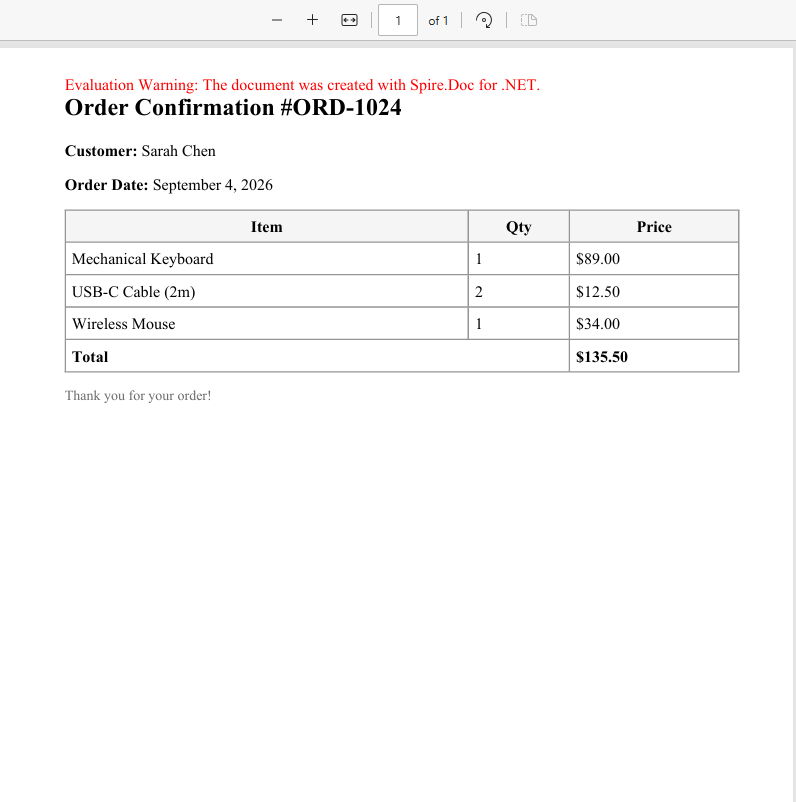
This approach is highly flexible and suitable for scenarios where the PDF content is constructed programmatically at runtime.
Conclusion
Converting HTML to PDF in C# is a straightforward task. The two methods shown above—loading from a file and appending a string—cover the majority of common use cases. With a suitable library like Spire.Doc for .NET, you can implement this feature with just a few lines of code, making it a practical addition to your .NET projects.